
Guide
How to switch from MyGate to another society app
Updated
Written by the Ekvasa team at Colligo Infotech. How we write our guides.
MyGate is a trademark of its owner. Ekvasa is not connected with it.
Source: mygate.com, checked on 22 November 2026.
This guide covers only the steps particular to leaving MyGate. The steps for any move, from the records to collect to a checklist to copy, are in our guide on how to switch your society app.
Before you decide
- A committee resolution. Record the decision and the go-live month in the minutes. If your bye-laws ask for the general body’s approval, take it to the next general meeting.
- Your MyGate agreement. Read its end date and notice period, and check who signed it. See what to read in your current agreement.
- The audit. If the year-end audit is close, many committees move after it, so the books come over from a closed year.
What to ask MyGate for
Write to MyGate and ask for a dated export of your society’s records on the cut-off date:
- homes, with their owners and tenants,
- vehicles and parking,
- each home’s dues on the cut-off date,
- the society’s ledger balances on the same date.
Keep MyGate’s reply, and the export itself, with the committee’s records. Ask MyGate which formats it can give and how long it takes; the answer comes from MyGate, not from us.
The gate phone and gate hardware
The gate is the part of a move from MyGate that needs the most planning, because MyGate’s own pages describe two parts of its gate service.
- The gate phone. MyGate says: "Every society will receive a smartphone locked at the root level with the Mygate Guard App loaded."
- Barriers and cameras. MyGate says it "integrates with boom barriers and Automatic Number Plate Recognition (ANPR) systems from multiple providers".
Source: mygate.com, checked on 22 November 2026.
What this means for Ekvasa:
- A phone of the society’s own. Ekvasa’s gate runs on an ordinary smartphone with the Ekvasa gate app. Plan that phone before the go-live day, and train the guards on it.
- No link to barriers or cameras. Ekvasa does not link to boom barriers, RFID readers or number-plate (ANPR) cameras. If yours are linked to MyGate, decide with the committee and the security agency how the barrier will run before you fix the go-live day.
See where Ekvasa may not fit and gate security.
Bringing your records into Ekvasa
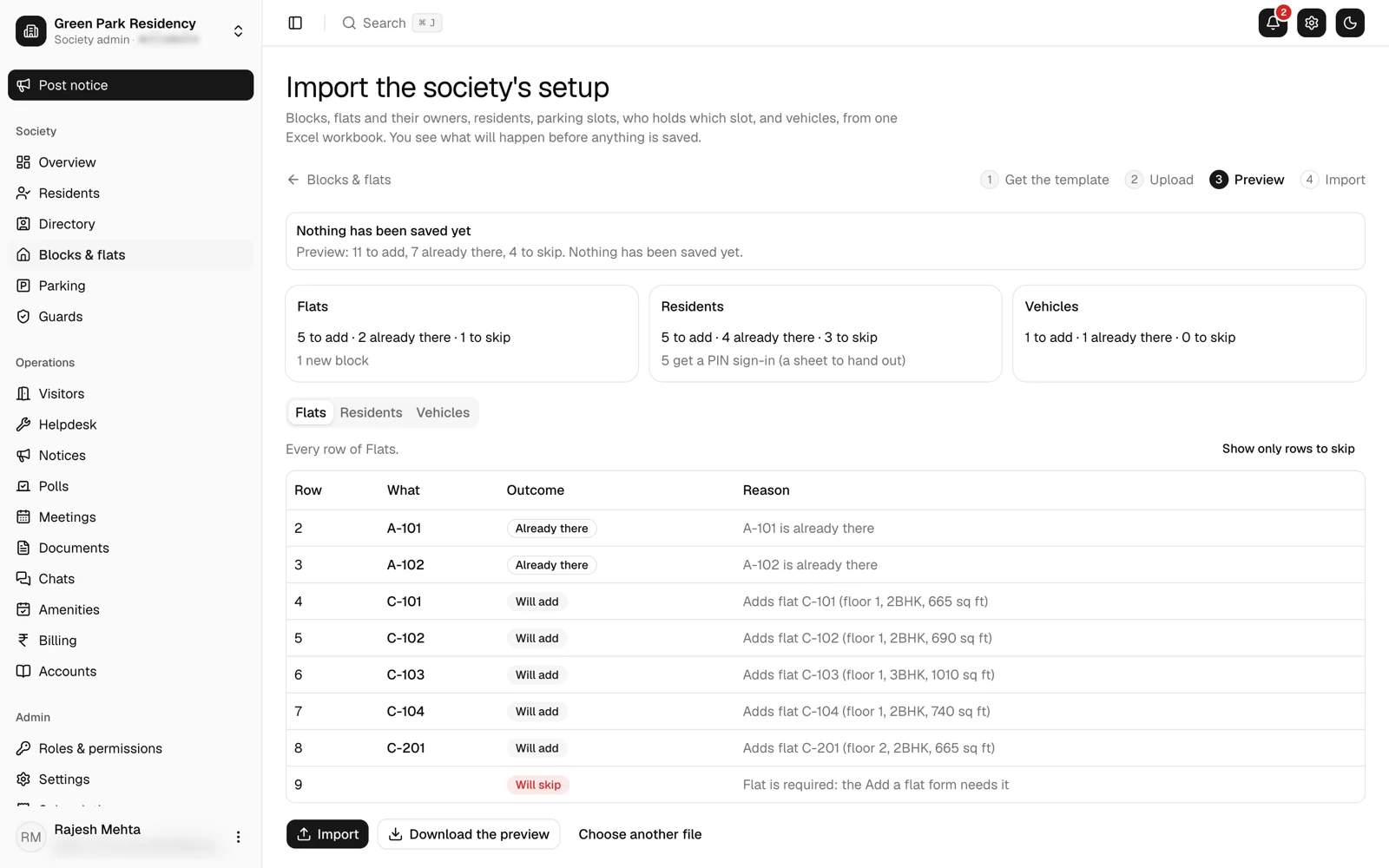
- One master file. The office fills Ekvasa’s master file, in Excel or as a zip of CSV files, from the MyGate export or its own registers. The Ekvasa team imports it.
- Checked before anything is saved. Every sheet is checked first, and the office gets a list of what to fix.
- Importing again only adds. Whatever is already in Ekvasa stays as it is, and a changed detail is reported, not written, so importing again is for adding what is new.
- Opening balances on the cut-off date. Each home’s opening dues and the society’s opening balances are the figures on the cut-off date.
- Guards’ logins one at a time. Each guard’s login is made separately, with a sign-in sheet for the guard.
- Welcome messages wait. The team starts the welcome messages to residents and guards only after the society’s admins confirm the import, or the team records that the society confirmed it another way.
For everything that comes across, see what comes across from another app.
A short overlap
- If the committee wants, MyGate can stay on for a short overlap. Give it a fixed end date, or guards will use both apps.
- One cut-off date for dues. Each home’s dues on that date come across as its opening dues in Ekvasa.
- The gate moves on one day. Pick the start of a shift, and tell every shift which app to use from then on.
- A paper register in week one. Keep it at the gate as a backup while the guards settle in.
A circular to residents
Send the circular before the go-live day, and again on the day. Residents can follow our page on how to sign in to Ekvasa.
Dear Residents,

From [go-live date], [Society name] will use the Ekvasa app for the gate, maintenance bills and notices.

What you need to do:
1. Install Ekvasa from the App Store or Google Play.
2. Sign in with the mobile number or email the office has for your home. A 6-digit code will come to you.
3. Check your home, family and vehicles, and tell the office if anything is wrong.

Your dues up to [cut-off date] stay as they are in your ledger.

For help, contact [office contact] between [hours].

[Name], Secretary, [Society name]
Closing MyGate
After go-live, and after any overlap ends, ask MyGate in writing to delete residents’ data. Keep the export and MyGate’s reply with the committee’s records.
If you ever leave Ekvasa
- The society’s data belongs to the society.
- A copy on request. Ekvasa gives the society a copy of its data on request during the service and for 30 days after it ends.
- Deletion in writing. Ekvasa deletes the society’s data when the society asks in writing, except what the law requires it to keep.
- Stopping. The society can stop at any time by writing from its registered email.
See our terms.
Questions committees ask
How long does it take?
It depends on your society: how ready the MyGate export and your own registers are, and how the gate will run. Take it step by step: the decision, the export, the gate, the import, then the go-live day.
Do residents have to start again?
No. Their homes are already set up from your records. Residents install the app and sign in with their mobile or email and a 6-digit code.
Can guards learn it quickly?
The guards use one gate app, in English, Gujarati or Hindi. Train them on the actual gate phone, on every shift, before the go-live day.
Sources
The outside pages this page relies on. Open them to check the facts for yourself.
Do this in Ekvasa
Ekvasa keeps bills, receipts, notices and records in one app for the office and every home. The Ekvasa team sets your society up with your own data.